

How to Translate Chinese Subtitles in Taobao and 1688 Product Videos
Learn how to replace hardcoded Chinese subtitles in Taobao and 1688 product videos with LumoCut, from choosing a suitable video to downloading translated subtitles.
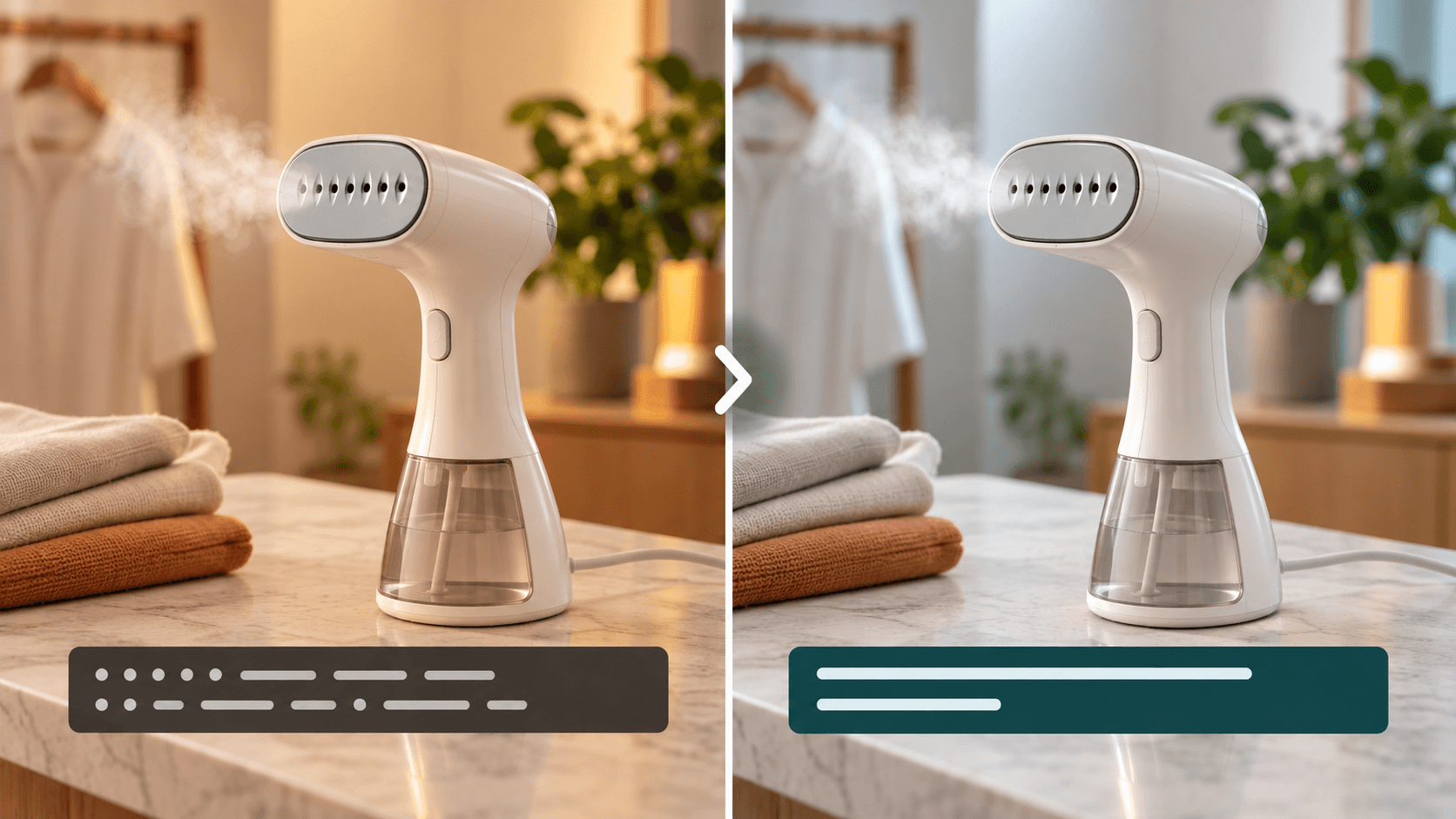
How to Translate Chinese Subtitles in Taobao and 1688 Product Videos
When shoppers are deciding whether to buy a product, photos and a written description do not always show how it looks or works in practice. Product videos are useful because they make the product and its use cases easier to see.
Taobao and 1688 product videos often already contain that information. Instead of filming from scratch, sellers can reuse the product and use-case footage to show international customers the product in more detail.
Chinese subtitles can make those videos harder to use as they are. When the footage can remain unchanged and only the hardcoded Chinese subtitles need updating, subtitle replacement is worth trying before making a new video. It lets you keep the useful product footage while replacing the subtitles with translated subtitles for the audience you want to reach.
This guide explains how to choose a video that is a good fit for subtitle translation and how to replace Chinese subtitles with another language in LumoCut.
Choosing Videos That Work Well for Subtitle Translation
If the product and use-case footage can stay as it is and only the Chinese subtitles need to change, start with subtitle replacement. You can reuse the product information already in the video for international selling without filming or re-editing the whole video.
If you have several videos to choose from, begin with one that is closer to these conditions:
- The subtitles stay in a relatively consistent area, such as the top or bottom of the frame.
- The background behind the subtitles is not overly complex.
- The subtitles do not keep moving across the screen or use excessive flashy transitions.
Subtitle position and the background behind it can affect the result. Hardcoded Chinese subtitles are not like a separate subtitle file where you simply edit the text. LumoCut removes the subtitles, cleans up the area where they appeared to match the surrounding background, then renders translated subtitles into the video.
How to Replace Chinese Subtitles with Another Language in LumoCut
You do not need video-editing or subtitle-editing experience to start. In LumoCut, choose the video you want to translate and the language you want to use. LumoCut removes the hardcoded Chinese subtitles, cleans up the area where they appeared to match the surrounding background, and creates a video with translated subtitles. You can also decide whether to keep the original audio or remove it.

Choose the Video and Target Language
To begin, choose just two things:
- Source video — the product video you want to translate.
- Target language — the language for the translated subtitles.
Upload the Source video and choose a Target language to start subtitle translation.
Decide Whether to Keep the Original Audio
You can keep the original audio or remove it. Keep it if you want to use the existing sound in the finished video.
Select Remove original audio when you need a version without the original sound, for example:
- The platform or ad placement where you will publish the video calls for a version without audio.
- You plan to add separate music to the finished video later.
Create a Video with Translated Subtitles
Choose the Source video and Target language, then decide whether to remove the original audio. When you start the job, LumoCut handles the rest automatically. It removes the Chinese subtitles in the video, cleans up the area where they appeared to match the surrounding background, and renders translated subtitles in the language you selected. You do not need to edit the video yourself.
Download the Result Video with Translated Subtitles
Once the job starts, you can follow its status. When it succeeds, the completed video appears in your video list and is ready to download.
After downloading it, check that the translated subtitles do not cover important product footage and that the area where the original subtitles appeared does not look out of place. For a sales video, make that check before using the result.
Conclusion
When a Taobao or 1688 product video can keep its product and use-case footage and only its Chinese subtitles need changing, you do not need to make a new video. Choose a video that is suitable for subtitle translation based on its subtitle position, background, and movement. Then select the Source video and Target language in LumoCut, decide whether to use Remove original audio, and download the completed video when the job is done.
After a quick review, you can reuse the product video you already have for international selling. Start a subtitle replacement job in LumoCut.
Try translating the subtitles in a video you already have
Start for free