

How to Translate Product Videos for Ecommerce Listings
Learn how to translate product videos for ecommerce listings with a simple subtitle-translation workflow, preview checks, and clear fit guidance.

How to Translate Product Videos for Ecommerce Listings
You do not need to become a video editor to show an existing product video to shoppers in another language. For many listing videos, the practical path is simple: choose the video, choose the language, create a translated subtitle version, check the preview, and upload the version that looks right.
The one detail worth checking first is whether the original words are already visible in the video image. That decides what needs to happen to the old subtitles before the translated ones appear.
Key Takeaways
- Start with a product video you are allowed to modify and the language your shoppers need.
- Check whether the original subtitles are already written into the video image.
- Before uploading, confirm the product details, subtitle readability, and listing placement.
Subtitle localization for product videos
Before you begin: choose the video and language
Start with one video for one listing and one target language. This keeps the review simple and helps you spot a wrong product name, size, or unit before the video goes live.
You need only four things:
- A product video you have permission to use and modify
- The product name and the few details shoppers need to understand
- The target language
- The listing where you plan to use the finished video
If the video came from a supplier, creator, or another brand, confirm that you can use and modify it before making a new version. The U.S. Copyright Office explains that using someone else's work can require permission, depending on the situation. This is a practical check, not legal advice (U.S. Copyright Office guidance).
You do not need to memorize every marketplace rule for this step. Check the current rules for the place where you will upload the video once the version is ready.
Step 1: check whether the subtitles are already part of the video image
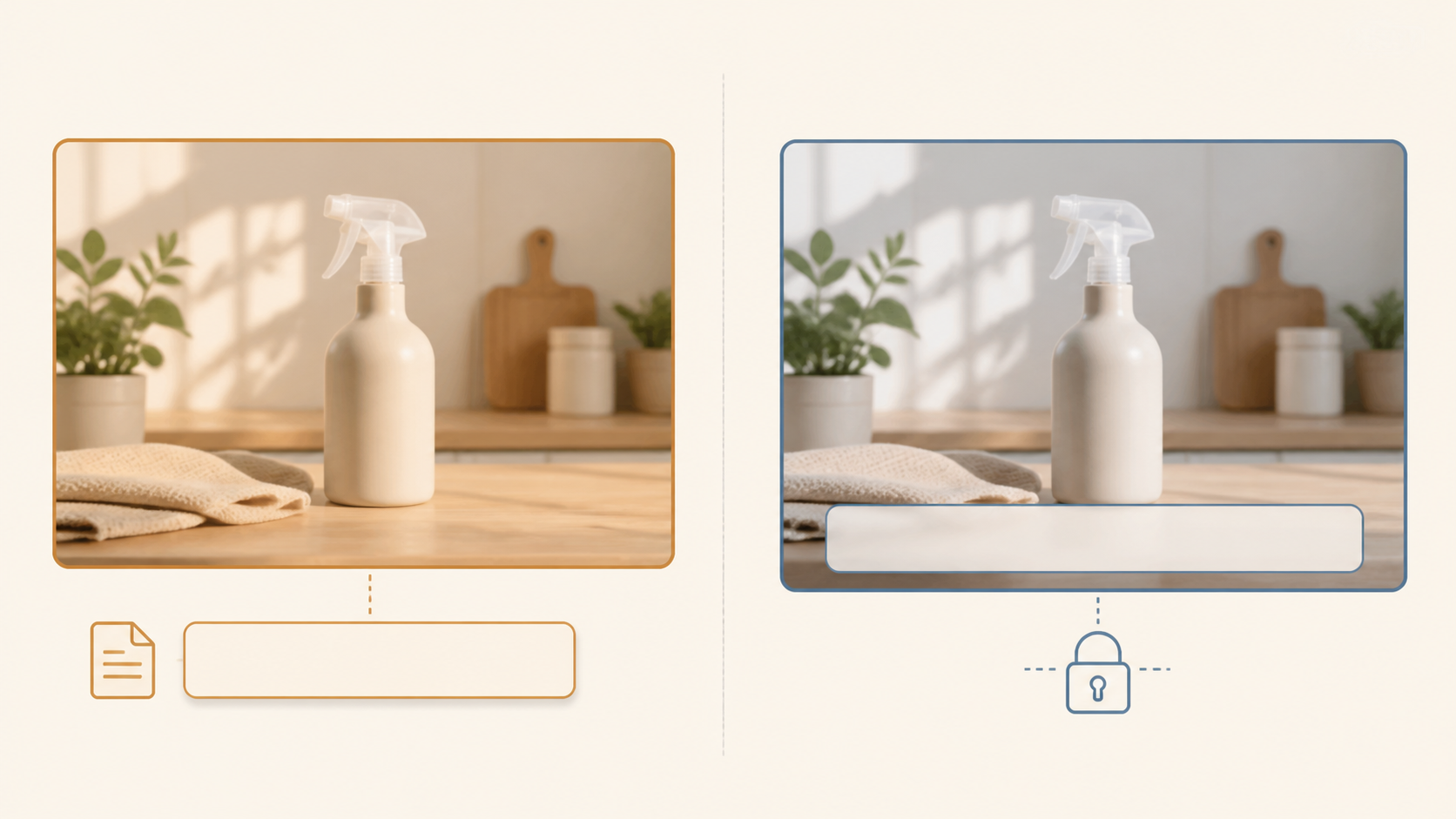
Look at the video while it plays. Can the original subtitles be turned on or off separately, or are the words always visible as part of the picture? The answer changes the job.
| If subtitles can be edited separately | If words are already written on the video |
|---|---|
| You may be able to create a translated subtitle version without changing the image itself. | The old words can still show behind a new translation, so they may need to be reduced or replaced first. |
Some videos let the player show subtitles separately from the picture. Others have the old words visible in the image itself. You do not need to know the file format. The useful point is that a separate translation cannot hide words that are already in the picture (W3C subtitle guidance).
Keep this boundary clear: words printed on a product, package, or app screen are not the same as subtitles. A subtitle-translation workflow should not promise to change every piece of visible text.
See product-video subtitle examples
Step 2: confirm the product details before translating
A natural-sounding translation can still be wrong if it describes the wrong product. Take a minute to confirm the details shown in the video before you create the translated version.
Use this short check:
- Confirm the product name.
- Check any feature, size, unit, or material mentioned in the subtitles.
- Decide which language the listing needs.
- Compare the translated preview with the product page before you upload it.
This is not a production brief. It is simply a way to make sure a shopper does not see the wrong size, feature, or product name in a language they rely on.
View LumoCut subtitle-localization examples
Step 3: create a translated subtitle version

The user-facing flow should stay straightforward: upload the product video, select the target language, then review the translated version. You should not need a professional editing setup for a basic subtitle translation job.
When original subtitles are already visible in the image, the service is designed to reduce or replace them where possible before adding translated subtitles. It also removes the original sound and creates a downloadable video for ecommerce reuse. That description is a product-scope boundary, not a promise that every background or every visible word will be changed.
Videos are a better fit when the subtitles stay in roughly the same area and the area behind them is relatively simple. A subtitle across a plain part of the frame is easier to work with than words that move across a busy scene.
If your main need is translated voice, dubbing, lip-sync, watermark removal, or general video editing, choose a tool built for that job instead. This workflow is for visible subtitle translation on short product videos.
Step 4: check the preview before uploading
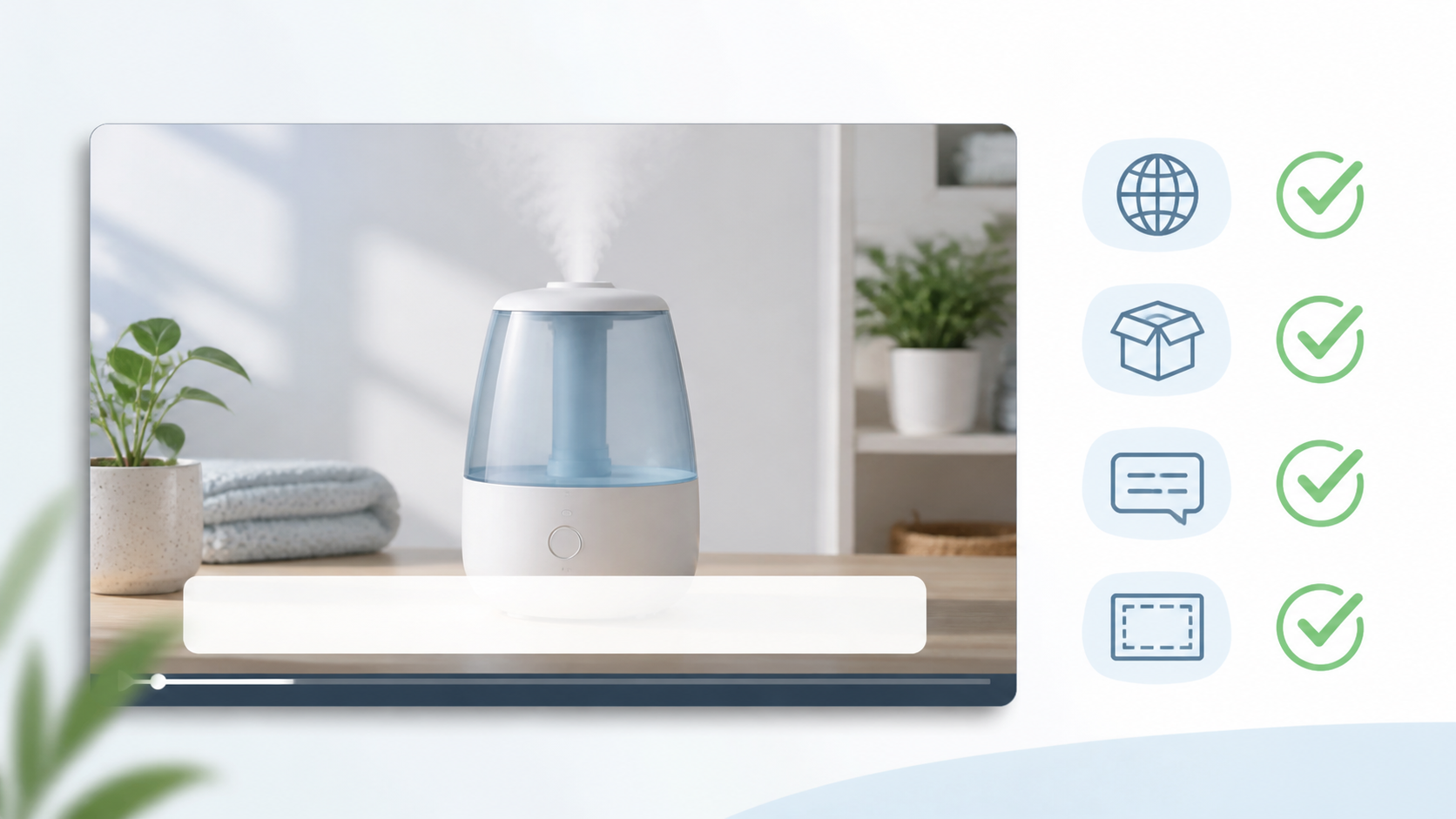
The preview is where you make sure the translated video still represents the product accurately. You do not need a specialist review. Check the same things a shopper will notice.
- Is the target language correct?
- Does the product name and key information match the listing?
- Are the subtitles easy to read?
- Are any original subtitles still visible in a distracting way?
- Did you choose the correct finished file for the listing?
Open the result in the place where you plan to use it when you can. A video that looks fine on your computer may need a final check in the product page or ad placement where shoppers will see it. Follow that destination's current upload and policy requirements rather than relying on a generic rule.
A simple success check: the language is right, the product information is right, and shoppers can read the subtitles without seeing the original words underneath.
Learn how LumoCut prepares product videos
Step 5: decide whether LumoCut is a good fit
LumoCut is a good fit when you have a short product video and want to replace visible subtitles for another language. It is most suitable when the subtitle area is fairly consistent and the background behind it is not too busy.
It is not the right fit when the job depends on a new spoken voice, a person whose lips need to match new speech, a watermark or logo removal, or full video editing. Setting that expectation early saves time and helps you choose the right kind of service.
Review LumoCut plans and credits
Common mistakes to avoid
The most common problems are easy to prevent when you check the preview before uploading.
Using the wrong product detail. Confirm the product name, size, and feature language against the listing. Do not assume a fluent translation is automatically accurate for your exact item.
Leaving the old subtitles visible. If the original words are part of the video image, adding a new translation alone can leave both languages on screen. Review the finished version before publishing.
Treating every visible word as a subtitle. Product labels, packaging text, and moving text in a scene may need a different workflow.
Expecting a new voice. Visible subtitle translation does not mean audio translation or dubbing.
Uploading without checking the real listing. Use the final placement to confirm the video, language, and product details work together.
Frequently asked questions
Can I translate a product video when words are already written on the screen?
Yes, but that is different from changing a subtitle file that can be edited separately. The original words are part of the image, so review the translated result to make sure they are reduced or replaced where possible and are not distracting underneath the new subtitles.
Do I need to translate every word I can see in the video?
No. Focus first on the subtitles that explain the product. Text printed on packaging, a product, or an app screen is not automatically part of a subtitle-translation workflow.
Does translating a product video add a new voice?
Not in this workflow. LumoCut focuses on translated visible subtitles and removes the original sound. If you need spoken translation or dubbing, look for a voice-focused service.
What videos are a better fit for this kind of subtitle translation?
Short product videos with subtitles that stay in a similar place and have a relatively simple background are a better fit. This is a practical fit guide, not a guarantee for every video.
What should I check before publishing a translated listing video?
Check the language, product name, important details, readability, and whether original subtitles remain visible. Then make sure you upload the correct finished video to the intended listing.
Choose, translate, preview, and upload
For a simple product-video translation job, start with the video and language you need. Check whether the original subtitles are part of the image, create the translated version, and use the preview to confirm shoppers will see the right product information.
If you need visible subtitle translation for a short product video, explore LumoCut Subtitle Localization.
Remove the source subtitles, then add translated subtitles in one flow.
Start for free